Want to block a website on your computer, then you just follow the simple step which is shown below. In this article you have to learn how to block any website with-out any software.
Follow the steps:
Step-1:
At first Open “Run” from the start menu or press WinKey + R. Just copy paste the following path and press ENTER.
notepad%windir%\system32\drivers\etc\hosts
or
Go to C:\Windows\System32\Drivers\Etc and find the file “hosts”. Then open with notepad file.
Opening hosts file
Step-2:
When this hosts file is opened in Notepad, at the end of the file you will see something like “127.0.0.1 localhost”.
Step-3:
Under “127.0.0.1 localhost” just add another website URL that you want to block.
For Example:-
127.0.0.1 localhost
127.0.0.2 www.youtube.com
127.0.0.3 www.allgovtjobs.in
Step-4:
Make sure every time you add another website, the last digit of the address 127.0.0.x should not be the same.
Step-5:
Save the file and exit.
So, here you go. Restart your browser if it is opened and changes will take place immediately.
The good thing is that no message, no popups nothing will be displayed when someone tries to open a blocked website. Your browser will just fail to open those websites without any error messages.
Here is an alternative method, how to enable hidden windows 7 themes. If previous methods are not working to then apply this method.
Step-1:
At First Go to Control Panel and then click on folder Options.
Note: --If Folder options are not available, change the view to large icons at the top-right corner of the screen.
Step-2:
Now click On the View tab and uncheck the box “Hide protected operating system files (Recommended)”. It will show you a warning; avoid this warning and Click Yes.
Step-3:
Now Go to “C:\Windows\Globalization\MCT\” Inside this folder you will see folders with name MCT-XX where XX will be AU, CA etc. These are the country codes in which these themes are automatically available.
Inside each MCT-XX you will see a Theme folder, now open it and click on the theme file to unlock it. Once unlocked, the theme will be available to you in personalizationoption.
This trick is an awesome, look like real matrix. It’s inspired by the matrix movie, this is known as falling code trick and it’s extremely popular on social networking websites. At first open notepad and then copy and paste the following code below, and then save it with the file name“Matrix.bat”. Go to your save location and run this batch file which is created by you.
i). Open notepad ® Copy and paste following code below:
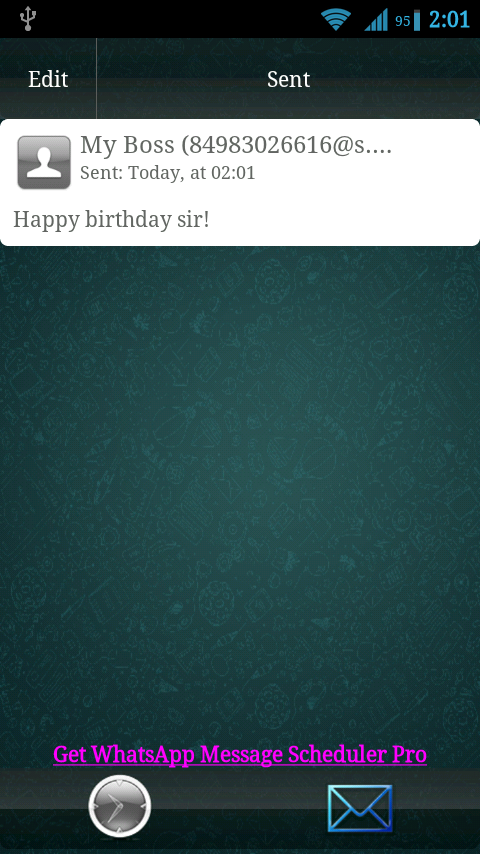
This post is show you, how can you send automatic messages on whatsapp. Is it easy to do ? Of course yes. No doubt , I always share very simple methods for doing complex work in very simple language. Schedule whatsapp message useful to us many times. e.g. Its your friends birthday & you want to wish at 12’o clock, then just schedule the message and go to sleep. Make your life easy and relax. Here are some steps for this trick, given below. Just read and follow carefully..
STEP 1:
First of all , you should have a rooted android phone. [How To Root Your Android]
STEP 2:
Now download and install WhatsAuto Messages App from playstore.
STEP 3:
You will get a better UI to use this APP and schedule your messages.
So just go for it.
Thanks for reading, now its time to share this post with your friends. You can also like my Facebook page to get latest updates.
WhatsApp is one of the most popular messaging apps out there, with roughly 10 percent of human beings actively using it every month. Given this volume of use, it's clear it gets a lot of things right, but today we will be concentrating on what it gets wrong. Here are some of the most common WhatsApp problems on Android and their solutions.
I can't install WhatsApp
In order to download the latest version of WhatsApp, you need to have a smartphone running Android version 2.1 or higher. You can check your phone's current Android version in Settings > About Phone.
If you're trying to install the WhatsApp app from the WhatsApp website, you'll need to have Unknown Sources enabled in your security settings. Go to Settings > Security> Unknown Sources to activate it.
If you have a tablet that only works with Wi-Fi, you will have problems installing WhatsApp, because you generally need a SIM card and a phone number to activate your WhatsApp account.
There is a solution to this problem. All you need is a working cell phone, your phone number, and our detailed guide on how to get WhatsApp on your tablet. A word of caution: if you play around with things that aren't normally allowed, you do so at your own risk.
WhatsApp connection problems are usually caused by your Wi-Fi or network data connection. If you aren't able to send a message, here are a few solutions:
Make sure your phone is switched on (one for the newbies).
Install the latest version of the app from the Play Store (link above).
Check your internet connection, Wi-Fi or 3G (in Settings > Wireless and Network).
Make sure that a Task Killer app isn't affecting WhatsApp.
We've all been there. You're traveling through South America on your gap year, and you're introduced to that guy in that hostel that you know you'll want to keep in touch with forever. You get his digits, and search for him in WhatsApp, but he's not there...
The solution is simple: when adding international contacts, you must always make sure you include the correct regional code (for example, +51 for Peru), even if your current number uses the same code. It might help if the other person does the same for your number too.
How do I block contacts in WhatsApp?
People block contacts for any number of reasons. I'm not here to judge. The process is very simple. To block a contact, all you need to do is go to the conversation with the contact you wish to block, tap the options button (the three dots), tapMore and then tap Block.
You can add as many contacts as you like to this black list and then you won't receive any more messages from them. If you later decide you would like to unblock a contact, go back to the same place and chooseUnblock.
The 'Last Seen' time stamp tells you when a user was last using WhatsApp. This does not necessarily mean that they have read your messages, only that they opened the application.
When you're in WhatsApp and one of your contacts also opens WhatsApp, you'll see their status change to 'Online' but again, this doesn't mean they're looking at your messages, just that they are using WhatsApp.
How do I hide my Last Seen timestamp in WhatsApp?
In WhatsApp, go to your Settings, then toAccount, then to Privacy. In this menu, tapLast Seen and select Nobody from the options that pop up. This means that no one will be able to see the last time you had WhatsApp open. You won't be able to see when your contacts were last online either.
There are different payment possibilities: Google Wallet and sending a payment link. Some older versions of WhatsApp still support PayPal too.
The first will give you the option via your navigator to pay with your Paypal account or by credit card.
The second pertains to your Google Wallet account, for which you can subscribe for easier app purchasing (you will need to give Google your bank account information).
The third one will send you a purchase link via email.
There is a lot of confusion about what the two checks (or tick marks) in your WhatsApp message window mean. If you want a complete breakdown of all the markings in WhatsApp, take a look at our detailed What do the WhatsApp check marks mean? article, which also covers the microphone markings for audio messages.
Here is a quick summary:
The clock symbol means your message is yet to be sent from your device.
One gray tick means that the message has been sent and has been received by the WhatsApp server.
Two gray ticks mean the message has been delivered to the intended device.
Two blue ticks mean that the recipient/recipients have seen the message. (In group conversations, this means when all participants in the group have viewed the message.)
How do I stop people from knowing that I've read their messages?
As of WhatsApp version 2.11.444, you can disable the WhatsApp blue check marks (read receipts) so that users do not know whether you have read your messages. This works both ways, so only disable this if you're OK with not knowing who has read your messages too. Go to Settings > Account > Privacy > Read Receipts.
Firstly, deleting your WhatsApp account and deleting the WhatsApp app are two different things. If you make the decision to cut ties with WhatsApp, you can just uninstall if from your device. You will be able to download it again from the Play Store later if you want to, but this is not the same as deleting your account.
To uninstall the WhatsApp app from your phone: go to Settings > Apps > WhatsApp > Uninstall.
To delete your WhatsApp account entirely: go to WhatsApp > Menu > Settings > Account > Delete My Accountand confirm your phone number. You also have the option to change your WhatsApp number associated with your account here.
While this is a super handy feature when connected to free Wi-Fi, auto-downloading media shared by your friends is not the best idea if you are near your data limit.
To disable this feature, go to Settings > Chat Settings > Media Auto-Download, and configure the options to your preference. Note that voice messages are always automatically downloaded, but their file size is usually much smaller than that of pictures and videos.
WhatsApp has a relatively limited number of file types you can send: photos, videos, audio, map location, contact details. Even with those supported file types, WhatsApp heavily compresses them. But what if you want to send a PDF or a GIF?
The easiest way to circumvent these limitations is to use an app.We recommend one called CloudSend, which links to a Dropbox account and then creates short-link URLs to any type of file you want to share, in WhatsApp or elsewhere. Simply grab the app, hit the share menu for the file and choose CloudSend.
If you have more questions, you can check out our forum or leave your requests in the comments below and we'll update this article with more solutions for your WhatsApp problems.